AI image edit prompts
Prompts that match Remorphy’s upload-and-edit workflow — copy one, then try it on your image.
Is this the right edit for your photo?
Choose an example instruction by task, adapt it to your photo, then open the matching editor.
- AI Image Editor for custom instructions
Describe a specific change to your photo when a preset task does not fit.
- Ghost Mannequin for clothing photos
Start from one hanger or flat-lay garment photo to suggest an invisible-body catalog shape. Inspect the cut and print after editing.
Prepare a product image set
Start with a clear original, make a plain-background main image, then prepare a lifestyle or promotional version. Compare shape, color, labels and seams with the source before using any output in a listing.
- 1. Photograph clothing at home
Lighting, hanger and flat-lay guidance, with illustrated setup diagrams.
- 2. Review ghost mannequin examples
Existing Remorphy results and suggested instructions; original generation settings are unavailable.
- 3. Adapt product photo recipes
Choose an instruction and check the details that matter for your product.
Prepare a white-background main image · Prepare a lifestyle scene · Continue your product project
product photography prompts
Use these product photography prompts to turn a photo of the item you sell into a cleaner listing or campaign draft. Choose the job first, replace the example subject, and inspect the result against your original—especially labels, logos, and small construction details.
How to adapt a product photography prompt
1. Start with a clear product photo
Use a sharp photo of the item you actually sell, with the whole product visible and a little space around it. A prompt cannot reliably recover hidden labels, missing parts, or fine detail from a blurry upload.
2. Name what stays and what changes
Replace the example subject with your item. Keep its shape, material, color, and label in the brief, then describe one background or lighting change. Start with one task before combining edits.
3. Check the result before publishing
Compare the label, product outline, color, and small parts with the original at full size. If details drift, simplify the edit or use a clearer photo. Check your marketplace’s current image rules separately.
The pictured pairs below are existing Remorphy examples with prompts to try. Other prompts are suggested templates. Adapt the subject and inspect your own result before publishing. “Try this prompt” opens the matching editor with the instruction ready to edit.
Catalog packshot on a neutral sweep
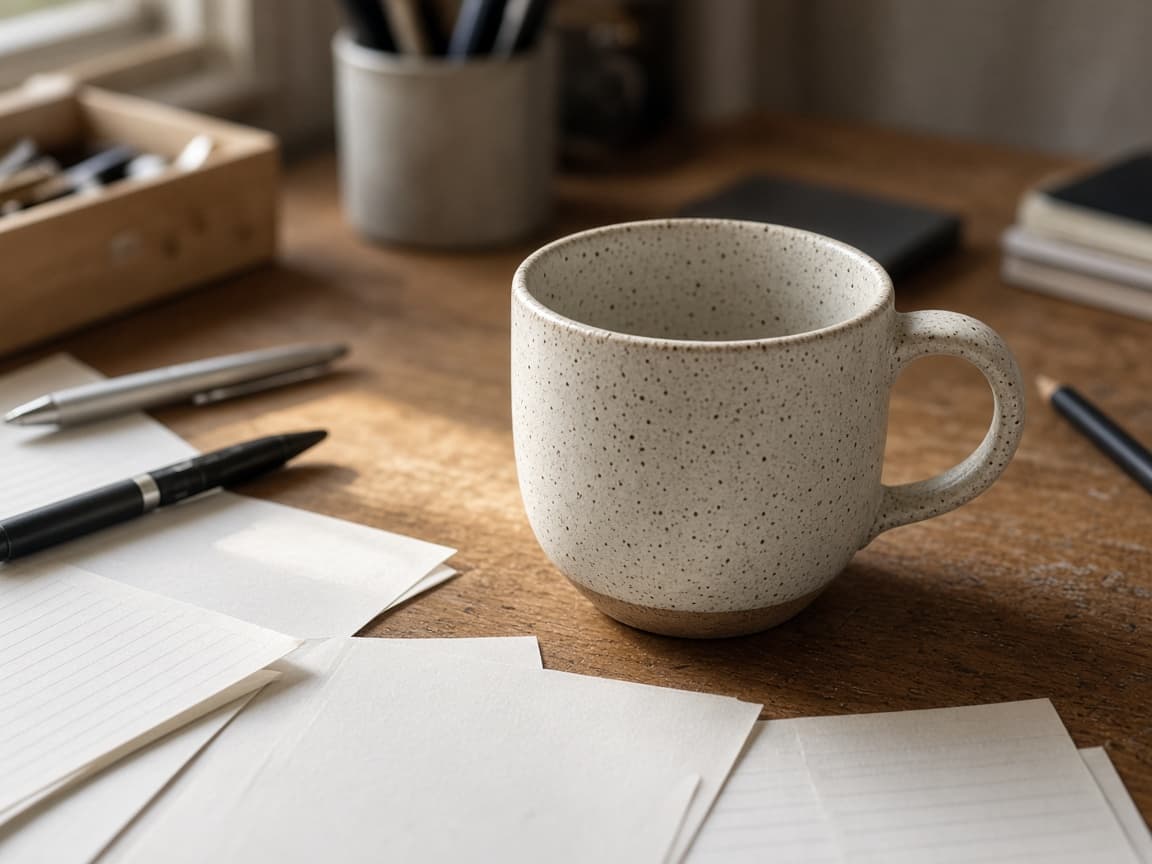
Before
After
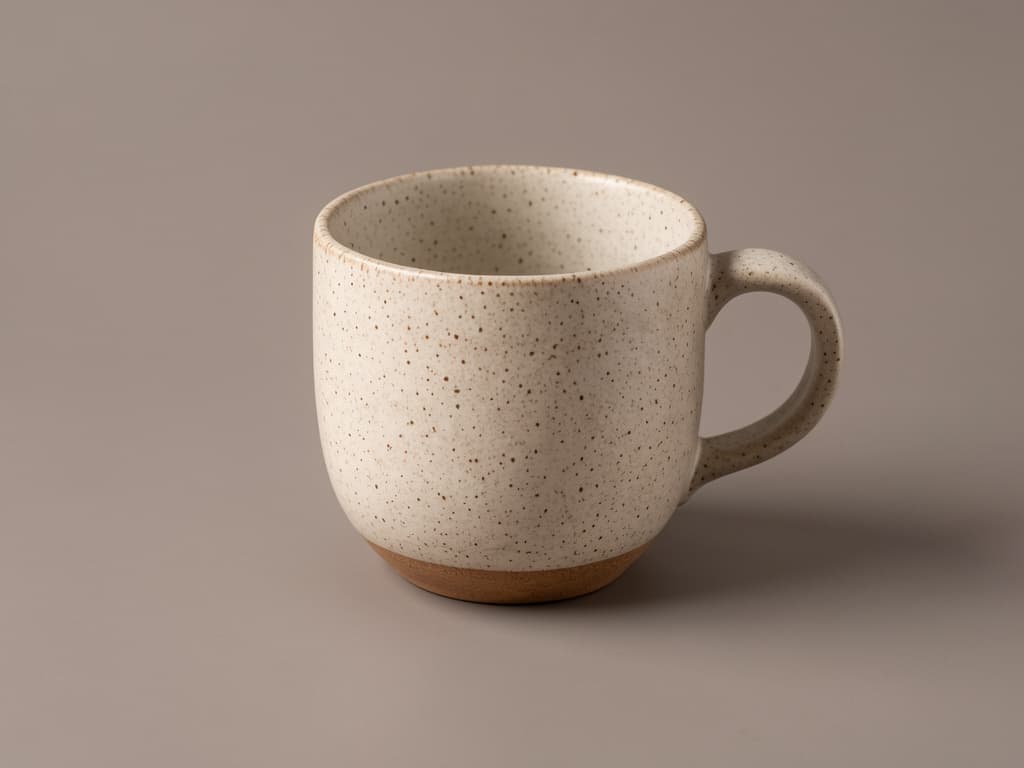
Existing Remorphy example: ceramic mug, desk to warm-gray backdrop. Prompt to try for this edit
Keep the ceramic mug the main subject. Place it on a seamless warm-gray studio backdrop with soft even catalog light and a soft contact shadow. Remove the oak desk and notebook.
- Start with
- A clear product photo with the entire silhouette visible; the pictured example starts with a ceramic mug on a desk.
- Adapt the prompt
- Replace ceramic mug, oak desk, and notebook with the item and surroundings in your upload. Keep the plain backdrop and soft shadow if you want a neutral catalog look.
- Check before publishing
- Check handles, rims, edges, and material texture. A generated background is not a transparent cutout (use Remove Background AI for that); prop edges can leave artifacts.
Opens AI Product Photo Editor
White-surface ecommerce shot
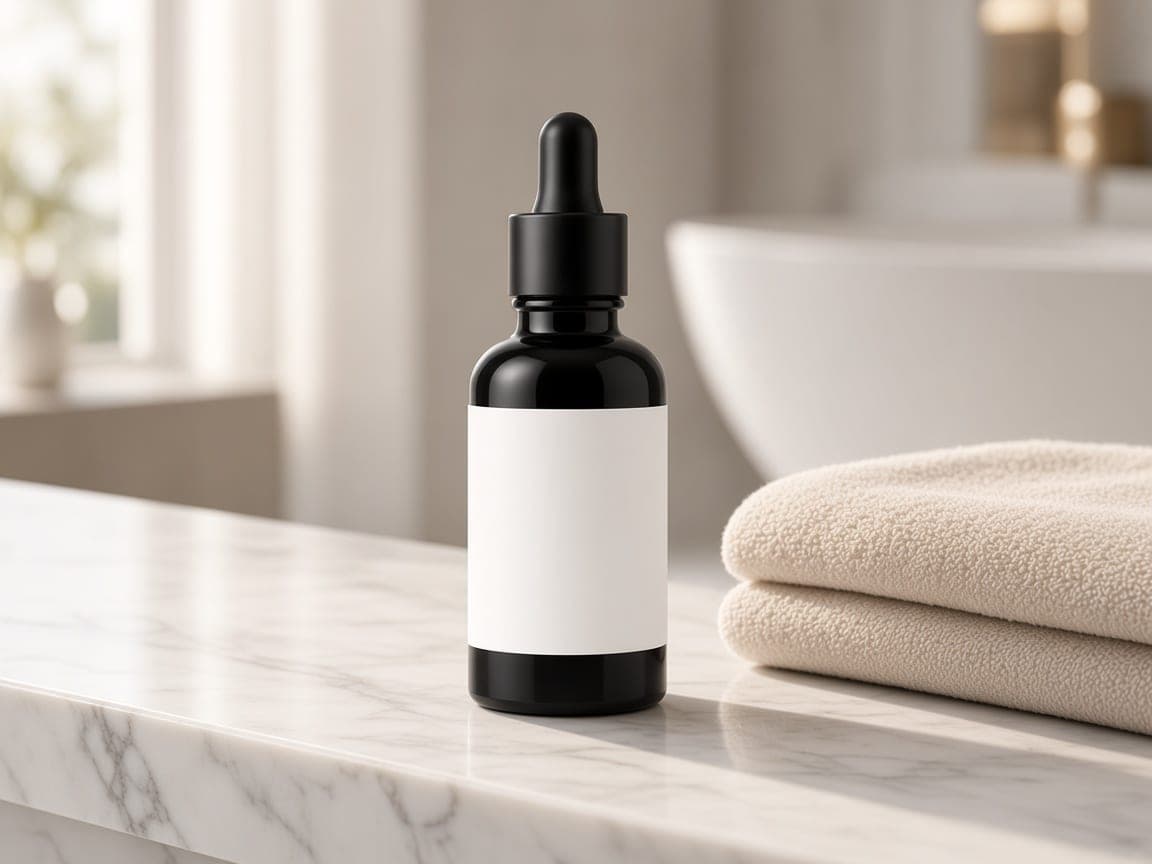
Before
After
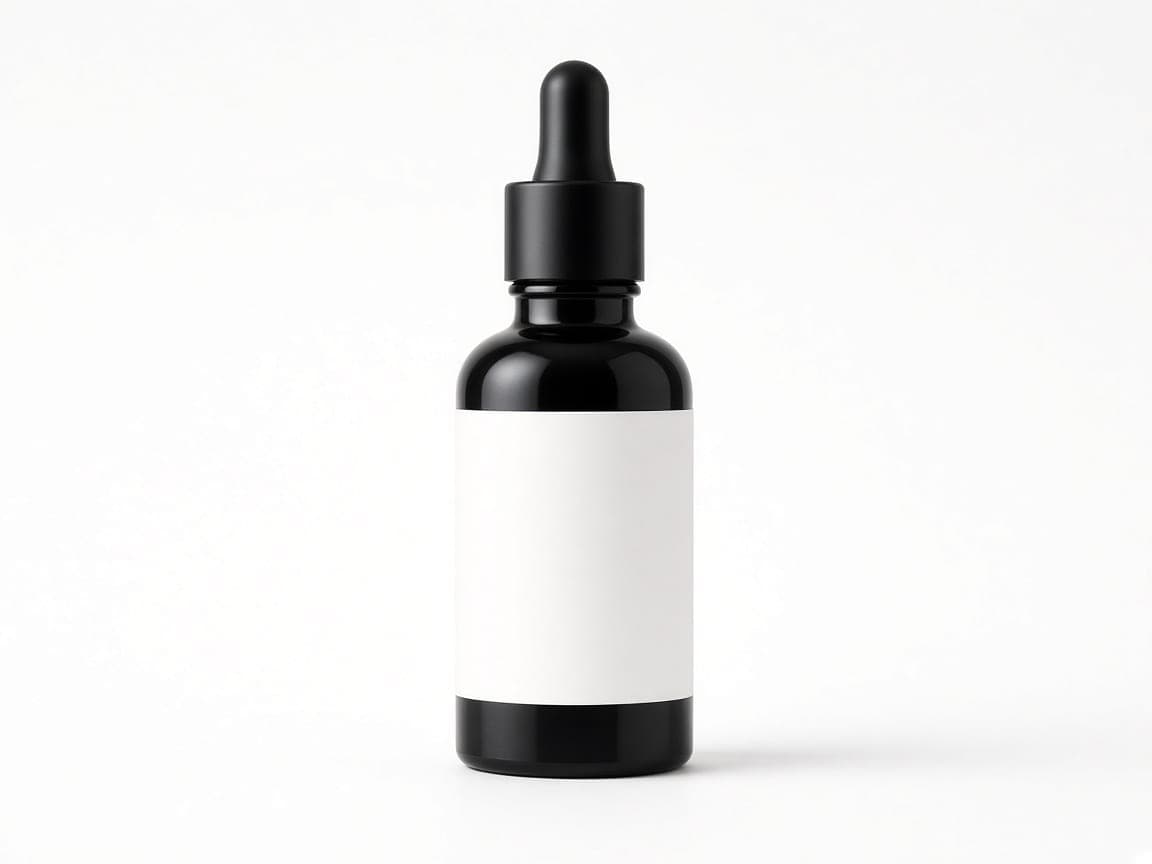
Existing Remorphy example: serum bottle, marble ledge to white packshot. Prompt to try for this edit
Keep the same matte black serum bottle identical in shape, label, and proportions. Place it on a seamless pure white studio backdrop with a soft contact shadow. Remove the marble ledge and towel. Soft even catalog light.
- Start with
- One clearly visible product against a simple or removable background; the pictured bottle has a blank white label area.
- Adapt the prompt
- Describe your product instead of the serum bottle, and name the surroundings to remove. Ask for a white background and contact shadow without redesigning the packaging.
- Check before publishing
- The example does not demonstrate readable fine print. Check real label text, cap shape, and glossy edges; a white backdrop alone does not certify marketplace compliance.
Opens AI Product Photo Editor
Polish without changing brand packaging
Suggested prompt template
Clean dust and fingerprints from the product, keep the label readable, softbox lighting.
- Start with
- A sharp product photo with minor surface distractions, rather than missing or obscured packaging details.
- Adapt the prompt
- Name the visible dust or fingerprints and ask to preserve the original finish. Remove the lighting request if you only need local cleanup.
- Check before publishing
- Check that embossing, label lettering, and deliberate texture were not smoothed away. Use manual retouching when a small branded detail must remain exact.
Opens AI Product Photo Editor
Premium bottle on dark studio wall
Suggested prompt template
Change the background to a soft gradient charcoal studio wall, keep the bottle centered.
- Start with
- A bottle photo with a complete outline and enough contrast to distinguish the edges from the background.
- Adapt the prompt
- Name your item and brand-fit background color. Add an instruction to preserve the product’s original color and label.
- Check before publishing
- Dark glass, dark caps, and transparent edges can merge into charcoal. Check separation and reflections before using this as a campaign image.
Opens AI Background Changer
Declutter for a marketplace listing draft
Suggested prompt template
Remove the loose hang tag, removable price sticker, and background clutter. Preserve the product, permanent label, and original packaging. Use a clean light-gray seamless backdrop.
- Start with
- A product with temporary tags or nearby props that do not conceal important product details.
- Adapt the prompt
- List only the removable items visible in your photo. Distinguish a temporary price sticker from a permanent product or safety label.
- Check before publishing
- Removing a tag cannot reveal the true detail hidden behind it. Check the filled region and leave required markings intact.
Opens AI Product Photo Editor
Lifestyle PDP hero with brand-fit scene
Suggested prompt template
Blurred modern kitchen behind the product, keep the item sharp and label readable, soft daylight.
- Start with
- A clear appliance, bottle, or home product whose angle suits a kitchen scene.
- Adapt the prompt
- Replace kitchen with a setting appropriate to the item you sell. Name one surface and one lighting direction; ask to keep product scale and proportions unchanged.
- Check before publishing
- Check contact shadows, reflections, scale, and label text. Do not use generated surroundings to imply an included accessory or an unverified product capability.
Opens AI Product Photo Editor
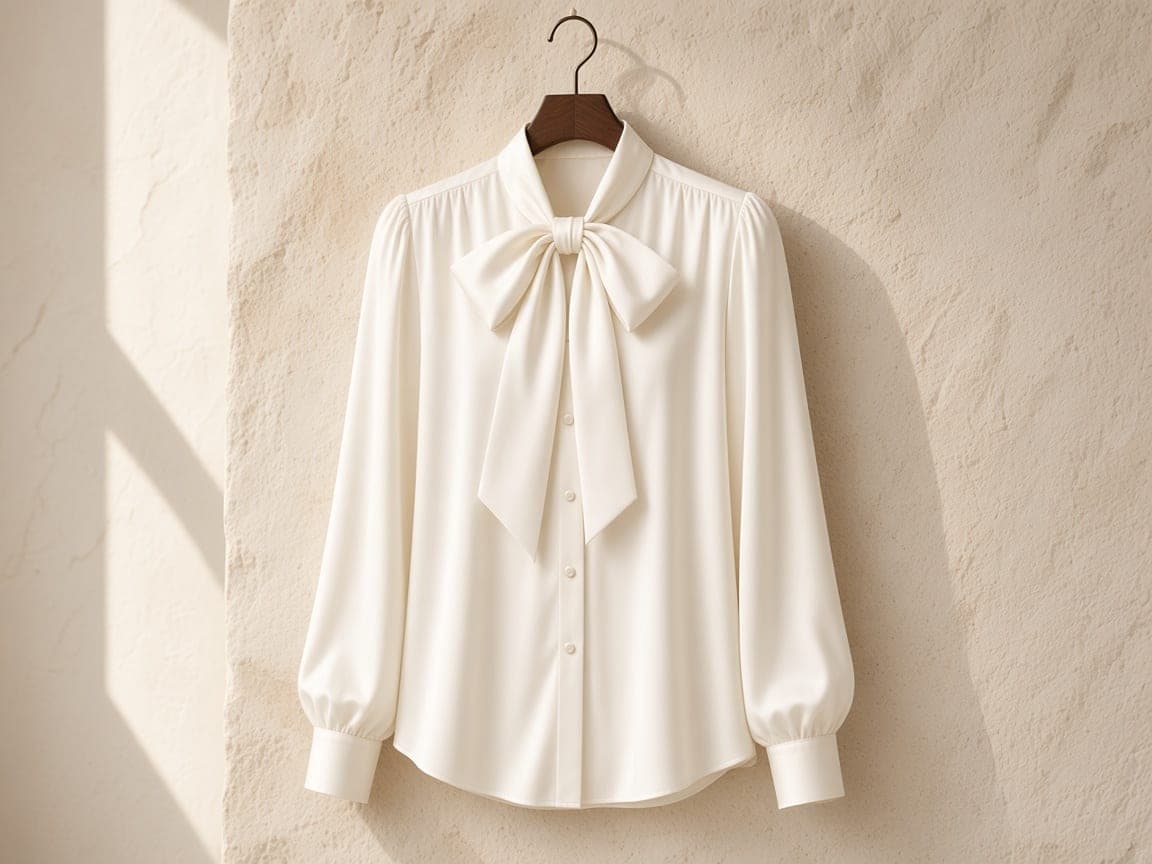
Invisible mannequin apparel catalog still from one photo
Before
After
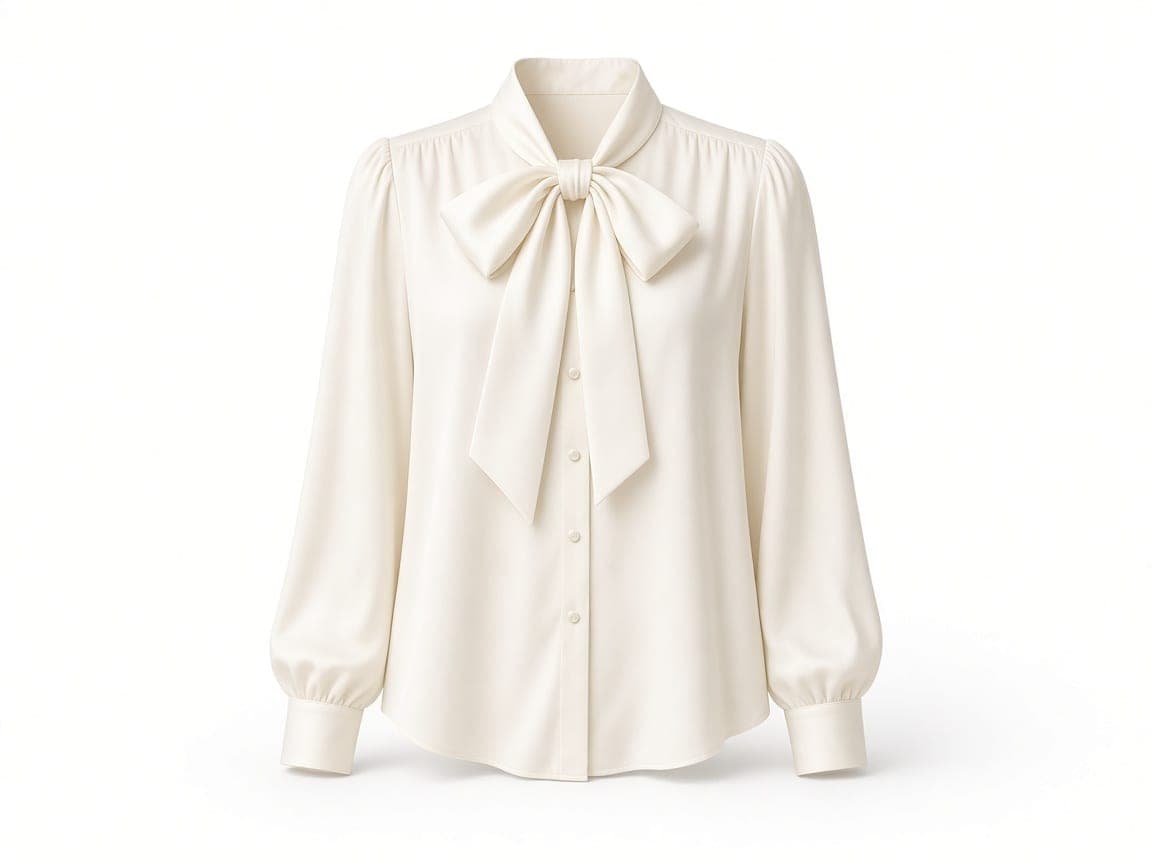
Existing Remorphy example: silk blouse, hanger to ghost mannequin draft. Prompt to try for this edit
Keep this ivory silk blouse identical in color, bow, and buttons. Present it as a ghost mannequin: natural torso volume, hollow neck showing the collar interior, sleeves filled, no person, no hanger, no visible mannequin. Seamless pure white background and a soft contact shadow.
- Start with
- One well-lit hanger shot or flat-lay with the collar, sleeves, and hem visible. This workflow uses one garment photo, not a second model image.
- Adapt the prompt
- Replace the blouse’s color, fabric, bow, and buttons with the visible construction of your garment. Keep the invisible-volume and empty-neck instructions.
- Check before publishing
- Hidden fabric is inferred. Compare button count, seams, sleeve lengths, collar, and silhouette with the actual garment; fine stitching and folds can shift.
Opens Ghost Mannequin
portrait edit prompts
Best when you keep the same person and only tidy light, wardrobe, or the room behind them. Avoid asking for a different face or celebrity face swaps.
Corporate headshot cleanup
Professional LinkedIn headshot, soft key light, plain light-gray backdrop, natural skin.
Opens AI Headshot Editor
Subtle portrait polish
Keep the same face and hair, brighten the eyes slightly, even out skin tone, no makeup change.
Opens AI Portrait Editor
Background tidy for a profile photo
Change the messy room behind the person to a soft office blur, keep the pose.
Opens AI Background Changer
Outpaint a tight crop
Expand the frame downward to show more of the blazer and desk, keep the face centered.
Opens AI Image Expander
Studio look from a phone portrait
Neutral studio backdrop, gentle catchlight, keep wardrobe and expression unchanged.
Opens AI Headshot Editor
Sheet-ghost portrait from one photo
Edit this portrait into a ghost photoshoot. Cover the person with one continuous white bedsheet from the top of the head down over the body. The cloth stays whole, with natural fabric folds and no holes or cutouts anywhere. Rest small dark sunglasses on the outside of the sheet at eye level. Finish with moody retro film color, soft grain, and warm vintage light. Keep the same pose and background. Do not add extra people.
Opens AI Ghost Photoshoot
Over-perfect half of an AI vs reality photo
Edit this everyday photo of the adult already in the frame into an over-perfect AI vs reality photo. Keep the same face, identity, apparent age, hair color, body shape and size, expression, pose, and camera angle. Do not make them slimmer, taller, more muscular, or a different person. Do not turn the subject into a child, a celebrity, or a stranger. Upgrade the place to a polished dream location, with flattering editorial light, salon-finished hair in the same color and length, and a refined version of the wardrobe. Do not add or remove people. No text.
Opens AI vs Reality Photo
Star-eye close-up with an original anime twin
Edit this close-up selfie into the anime eye trend, the star-eye format. Keep the uploaded adult photoreal: the same face, skin, hair, clothes, pose, and camera angle. Do not redraw the whole person as anime or as a different person. Do not turn them into a child, a celebrity, or a stranger. Cover exactly one eye with one flat paper-cut sticker, aligned so the sticker hides that real eye completely. The other eye stays photoreal, open, and in its original place. Do not cover both eyes. The sticker is a five-point star with a thin paper edge and a soft shadow. Inside the star, draw one original anime eye whose iris matches the person's eye color. Add three or four small paper-cut sticker portraits of an original anime twin around the face, not on top of the eyes. The twin matches this person's hair, iris color, and clothes and is an original character. Do not depict any known anime, manga, game, or film character, any studio mascot, or any copyrighted face. No text and no logos. Moody, dim light.
Opens Anime Eye Trend
Santa hat profile picture from one selfie
Turn this selfie into a Christmas profile picture with a Santa hat. Keep the same adult: the same face, apparent age, skin tone, hair color, expression, and eye direction. Do not turn them into a child, a celebrity, or a different person. Add one red velvet Santa hat with a white faux-fur brim and a white pom-pom. It sits naturally on the head, tilted slightly, the brim resting just above the eyebrows and following the hairline, lit by the same light as the face. Keep the clothes from the photo. Replace the background with soft, out-of-focus warm Christmas lights on a deep green wall. Frame it as a square profile picture: head and shoulders centered, the face large in the frame, with a little space above the hat so the pom-pom is not cut off. No text, no logos, no watermark. Do not add any known film, cartoon, game, or brand character.
Opens Christmas PFP Maker
background edit prompts
Best when the subject stays put and only the backdrop should change. Avoid prompts that rewrite the subject’s pose or identity.
Outdoor scene swap
Keep the subject sharp and replace the background with a pine forest trail at soft daylight.
Opens AI Background Changer
Plain studio backdrop
Replace the background with a plain warm-gray seamless paper, soft shadow under the subject.
Opens Remove Background AI
Desk to seamless
Move the product from the cluttered desk onto a clean light-gray infinite backdrop.
Opens AI Background Changer
Action subject, new setting
Clear the busy street behind the cyclist and keep the bike and pose on a quiet pine trail.
Opens AI Background Changer
Headshot-ready plain backdrop
Solid soft white backdrop, keep hair edges clean, no props behind the person.
Opens Remove Background AI
object removal prompts
Best when you name the clutter to clear and what the filled area should look like. Avoid vague “clean it up” with no object list.
Photobomber cleanup
Remove the person walking in the background. Fill the sidewalk naturally.
Opens Remove Object from Photo
Kitchen clutter removal
Remove bottles, mail, and bags from the counter. Keep the cutting board.
Opens Remove Object from Photo
Desk distraction cleanup
Remove cables, mugs, and sticky notes. Keep the laptop centered on a tidy desk.
Opens Remove Object from Photo
Product tag cleanup
Remove the hang tag and sticker glare from the packaging. Keep brand colors accurate.
Opens AI Product Photo Editor
Room tidy without rearranging furniture
Clear trash and loose papers from the floor while keeping the furniture unchanged.
Opens Remove Object from Photo
photo restoration prompts
Best for faded prints, scratches, and yellow casts without inventing new people. Avoid prompts that replace faces or drop modern objects into a period scene.
Faded picnic print
Restore faded colors, lift contrast gently, and clean the crease across the sky.
Opens AI Photo Restoration
Scratched landscape print
Remove scratches and white hairs. Correct the yellow cast. Keep the mountain scene.
Opens AI Photo Restoration
Family portrait repair
Repair small tears on the edges, even skin tones naturally, keep faces identical.
Opens AI Photo Restoration
Soft archive scan
Reduce haze and lift midtones for a clearer scan, no new objects in the frame.
Opens AI Photo Enhancer
Black-and-white archive cleanup
Clean dust spots and restore natural black-and-white contrast on this old print.
Opens AI Photo Restoration
image expansion prompts
Best when a tight crop needs more frame for banners or stories while the subject stays put. Avoid asking the subject to move—extend the edges instead.
Portrait outpaint
Expand the frame to show more of the coat and room. Keep the face and pose centered.
Opens AI Image Expander
Food photo outpaint
Expand upward to show more of the table and a drinking glass. Keep the pasta plate centered.
Opens AI Image Expander
Product banner expansion
Widen left and right for a 16:9 banner while keeping the product centered and sharp.
Opens AI Image Expander
Vertical social crop
Extend the background downward for a taller story crop. Keep the subject size the same.
Opens AI Image Expander
Catalog breathing room
Grow the studio backdrop around the product for more breathing room, soft even light.
Opens AI Product Photo Editor
Questions about using these prompts
How do I use these AI image edit prompts?
Choose a prompt for the job, open its linked Remorphy tool, and upload your own photo. The prompt is prefilled and editable. Replace the subject and scene details before you generate, then compare the result with your original.
Do prompts work without signing up?
The first edit can run on Fast after a human check without an account or credit card. Eligible first 2 trial edits download without a watermark. Later free downloads carry a watermark; a subscription or credit pack removes it. Balanced and High Quality require a subscription. The credit cost is shown before you generate.
Will a product prompt preserve every label and detail?
No. Asking to keep the product unchanged is an instruction, not a guarantee. Image editing can alter lettering, logos, shape, stitching, or reflections. Compare those details at full size before using the result in a listing. Use a manual editor or a new source photo when exact detail must be preserved.
What do the product before-and-after examples show?
The pairs are existing Remorphy examples reused to explain the pictured edits. The accompanying prompts are starting points for a similar edit, not complete generation logs. Prompts without a pictured pair are suggested templates for your own photo. Adapt the subject details and check your result; an example does not guarantee the same result for a different upload.
Or open the AI Image Editor and write your own prompt.