
Marketing teams without a retoucher
Refresh campaign assets by describing the change instead of reopening Photoshop for every variant.
17 editing tools, one editor underneath. Pick the job you have; each page has its own examples, prompts and tips. Selling online? Start with the product tools.
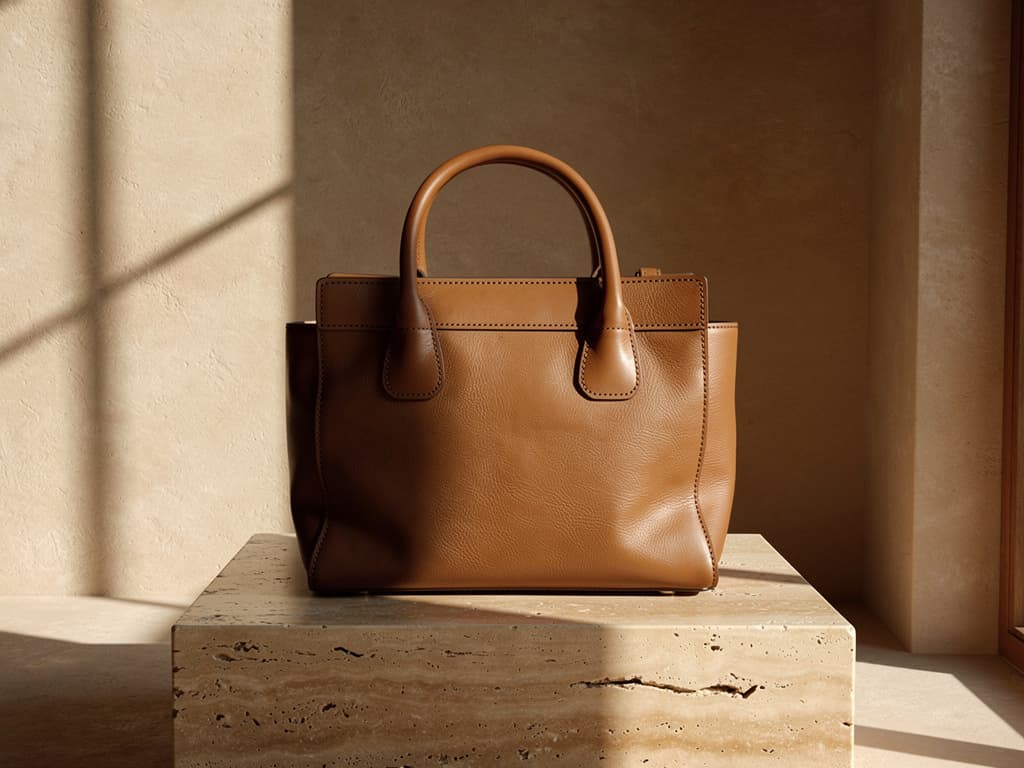
Catalog work should look like one studio, even when the photos were not shot together. These four editors each start from a single product photo and a prompt: ghost mannequin apparel, a cleaned packshot, a new scene, or a plain backdrop.
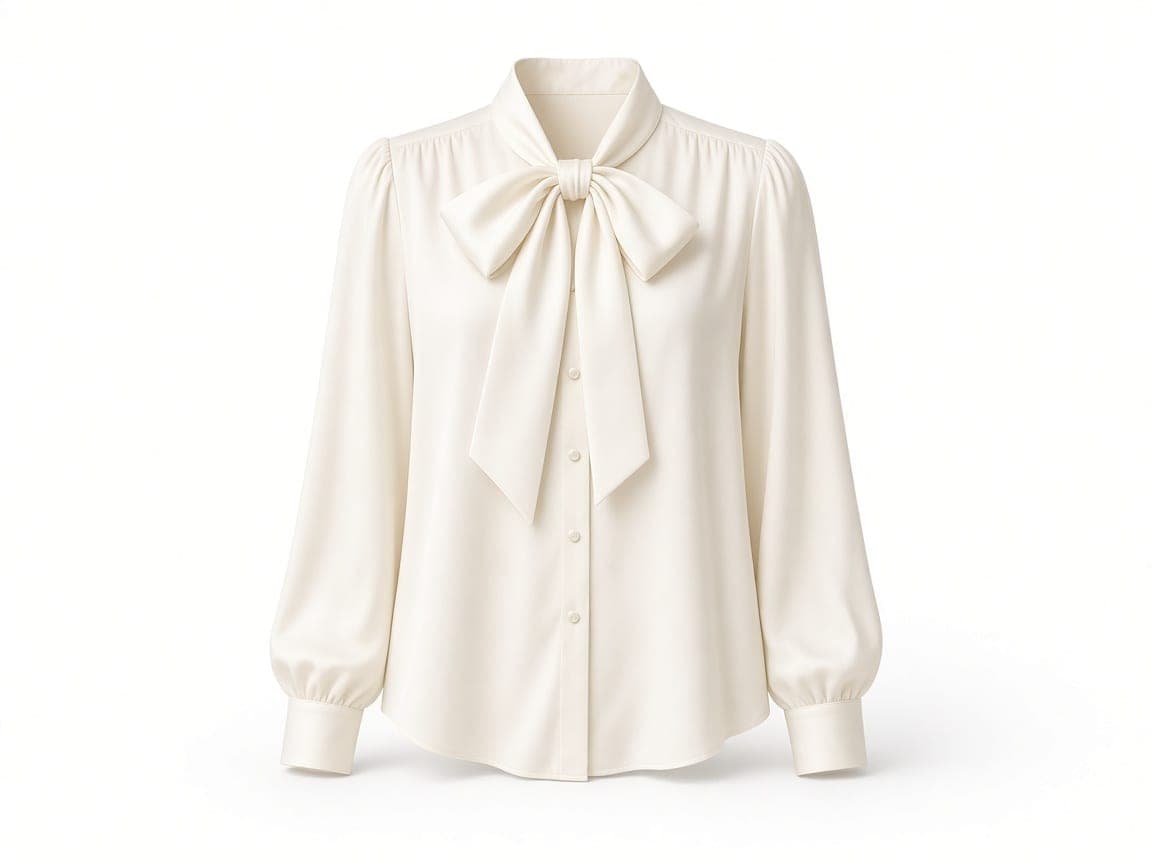
Turn one hanger photo or flat-lay into a white catalog still with invisible-body volume.
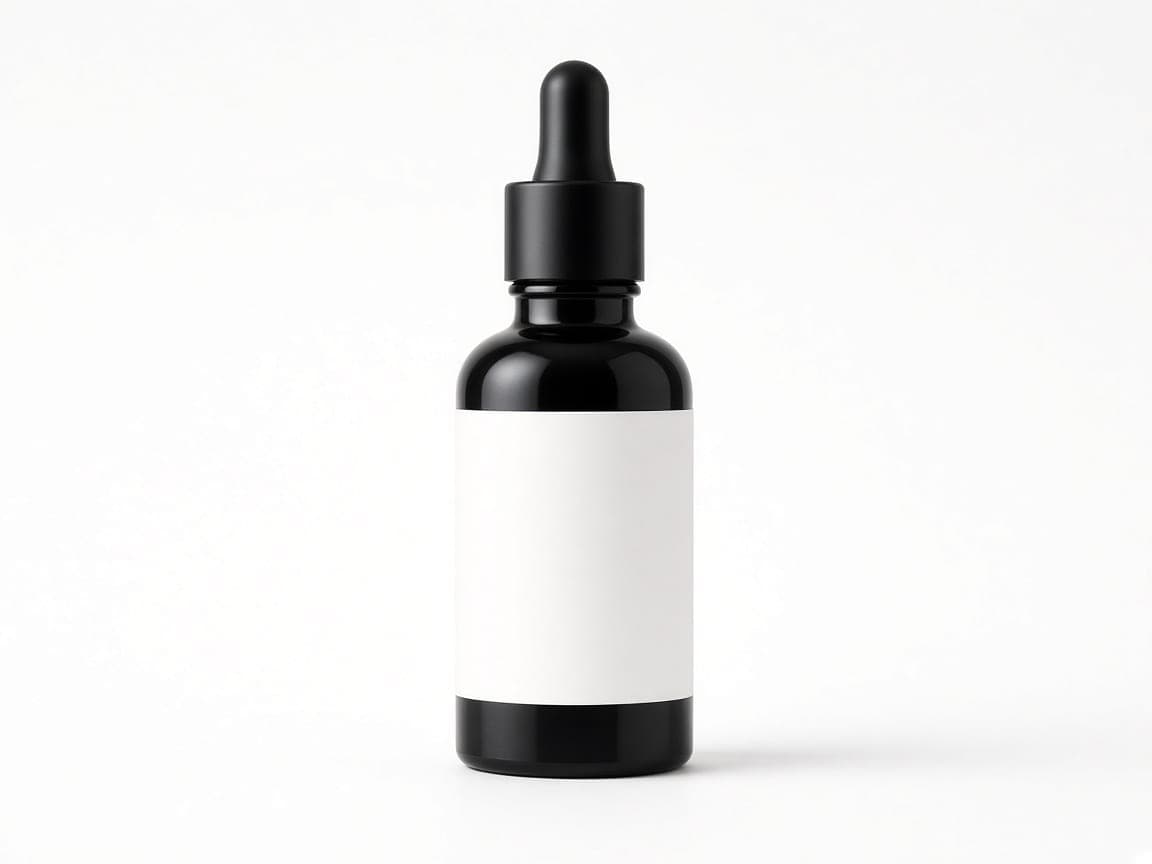
Restyle light and backdrop on the product photo you already shot.
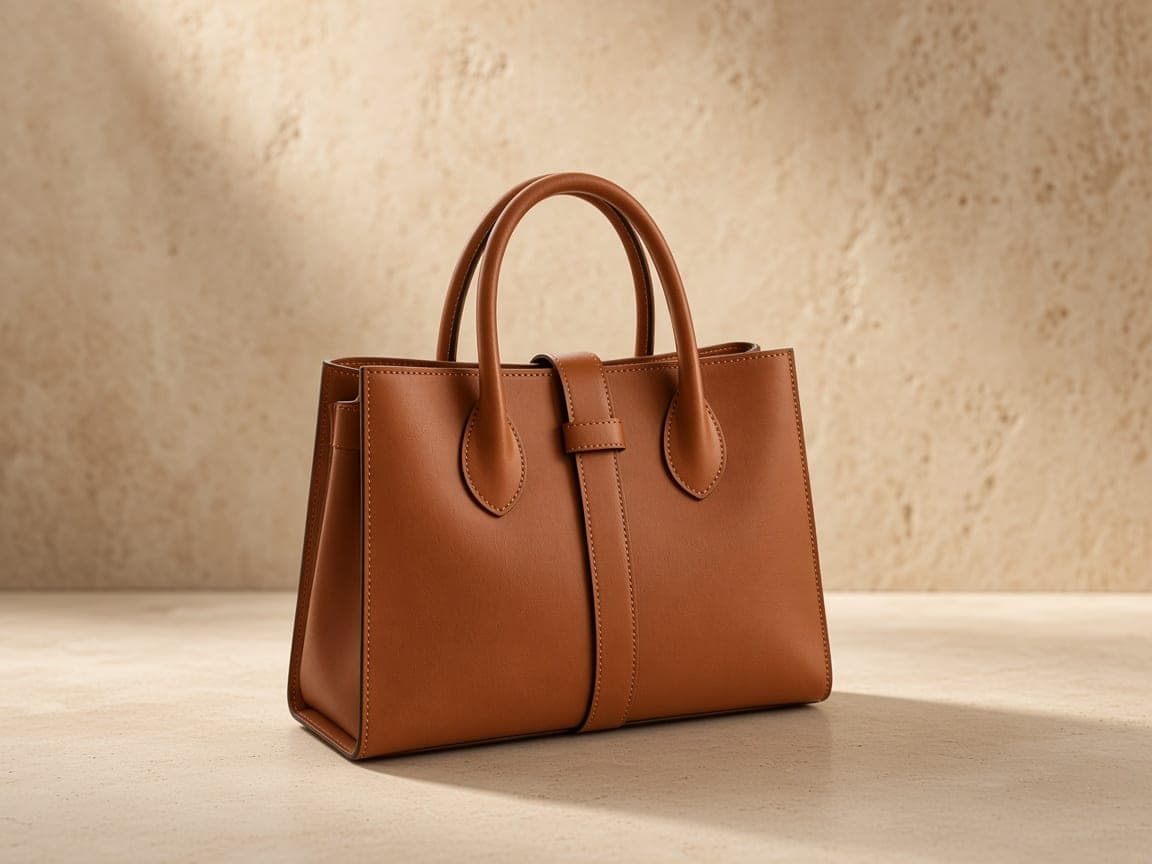
Keep the product and describe a new studio or lifestyle scene.
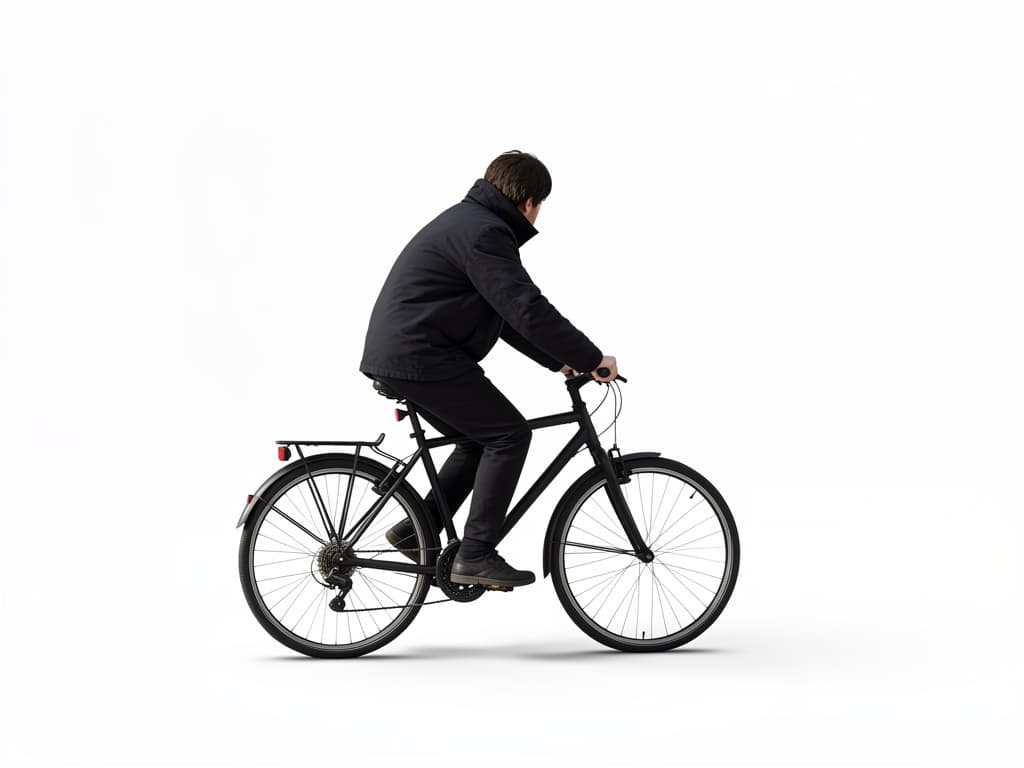
Ask for a plain white field behind the product you uploaded.
Checking images you already have? Run the free product image checker.
Browse task pages for product shots, portraits, cleanup, and creative restyles — or use the prompt-editor jobs below on this page with the same AI photo editor.
Polish SKU shots for catalogs and marketplaces
Shape one hanger or flat-lay into an invisible-mannequin still
Swap busy shelves for studio or lifestyle scenes
Prompt a clean white or brand-color field
Clear tags, props, and distractions near the SKU
Looking for viral photo effects? See seasonal and trend effects.
Refresh campaign assets by describing the change instead of reopening Photoshop for every variant.
Fix a product shot or lifestyle photo the same day the listing goes live.
Try anime, oil painting, or 3D render looks on photos you already posted.
Reduce clutter, brighten faces, or repair faded prints with plain-language prompts.
Catalog teams often need the same bottle on marble, wood, and concrete. Upload one hero photo and rewrite only the surface description between runs—faster than booking another studio hour.
Ask to empty a cluttered kitchen island or brighten a dull living room while keeping architecture fixed. Agents can prepare one MLS image quickly, then hand complex staging to photographers when needed.
Keep the talent and wardrobe, change skyline or storefront cues in the prompt for each region. Review brand rules before publishing—Remorphy still refuses celebrity face swaps and other blocked categories.
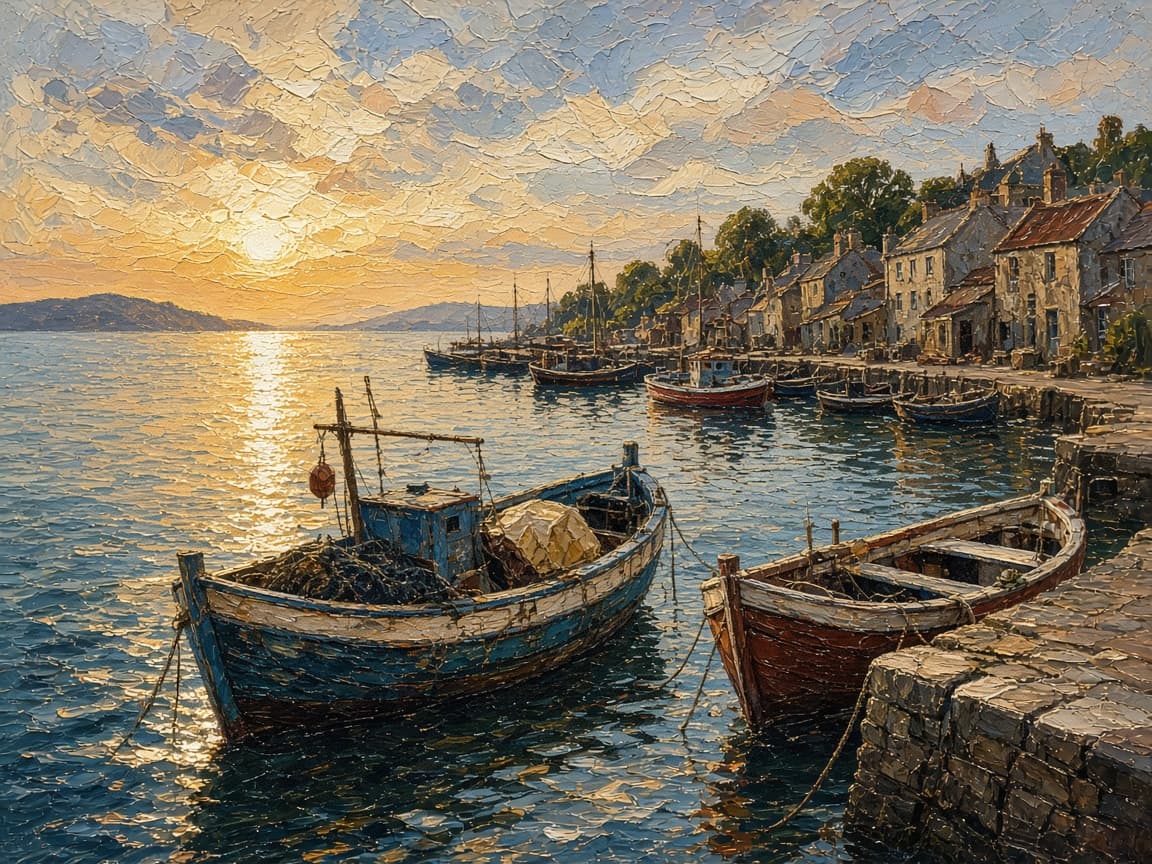
Describe an illustrated or oil-painted finish in the prompt when a raw photo feels too informal for a pitch deck. The subject stays recognizable while the finish matches the slide template.
Trash cans, exit signs, or stray cables can vanish when the prompt names them and asks for a natural fill. Inspect edges at 100% before you send a file to a printer.
Reuse the same upload across 1:1 and 9:16 outputs instead of manual letterboxing. Check faces and logos near the crop edges after each generate.
When you already know the job, open the matching tool page. Each one has its own examples, prompts, and tips for that kind of photo.
Open one in the editor prefilled, then swap in the details of your own photo. Browse AI image edit prompts.
Soft studio light
Keep the person identical. Add soft studio lighting and a neutral gray backdrop.
Remove passerby
Remove the person walking in the background. Fill the sidewalk naturally.
Golden hour
Shift to warm golden-hour sunlight with long shadows, same composition.
Illustrated poster
Turn this into a bold illustration with flat colors, keep the subject recognizable.
1
Add a product shot, portrait, or any photo from your camera roll. Image to image AI editing starts from that file, so the subject you already have stays the base.
2
Write the edit instruction — new background, remove an object, expand the frame, or restyle. Free runs Fast; paid plans unlock Balanced and High Quality. Then pick a model and ratio.
3
Save the edited image. History keeps the file for 7 days on the free plan and 30 days on a paid plan. After the file is removed, the row stays and is marked Expired.
Pick Remorphy when a sentence can describe the change and you want a new flattened image. Pick Photoshop or Affinity when you must preserve editable layers, precise selections, or print color management. Many people use both: prompt for exploration, layers for final polish. This editor will not replace a retoucher on jewelry sparkle or complex hair masks. Brief it the same way you brief a junior retoucher: subject locked, change named, finish described in the prompt, delivery crop listed.
| Workflow | Strength | Weak fit |
|---|---|---|
| Remorphy prompt editor | Fast whole-image changes from upload + text | Pixel-level masking |
| Layer-based apps | Exact control and reversible stacks | Slower for simple background swaps |
| Text-to-image only tools | New scenes from scratch | Weaker when you must keep one photo’s pose |
| Hiring a retoucher | Complex composites and beauty work | Cost and scheduling |
An AI photo editing pass is for a picture you already took. Use it to restyle the whole frame, replace a background, clear clutter, repair fading, or extend the edges — including product and ecommerce shots.
Fast is best for quick free edits. Paid plans unlock Balanced for everyday work and High Quality models in Advanced for detailed images. Credit cost is shown before you generate.
Default is Original (keep the upload ratio). Or choose 1:1, 16:9, 9:16, 4:3, or 3:4. Free files stay for 7 days, and paid files stay for 30 days. When a file is deleted, the history row remains and is marked Expired.
Remorphy is an AI image editor. You upload a photo you already have, describe what should change, and download the edited result. It is image-to-image AI editing, not a from-scratch art generator.
Yes. The first generation does not need an account. It does ask for a quick human check. A second generation opens the sign-in dialog. A new account starts with 5 free credits, granted once — no credit card required.
Credits determine how many generations you can make. Free accounts receive 5 credits once and can run Fast only. Paid plans unlock Balanced and High Quality, remove the watermark, join the priority queue, and can run two generations at once. Unused monthly subscription credits do not roll over; one-time pack credits stay until you spend them.
Start with Fast for quick free edits. Subscribe when you need Balanced for most product and portrait work, or High Quality models in Advanced for detailed images. The credit cost is shown before you generate.
It refuses the six categories in the Remorphy acceptable use policy: sexual content, violence or gore, hate, child sexual abuse, impersonation or deepfakes of real people, and copyright or trademark infringement. The full list is on the Remorphy acceptable use page. The check runs on the upload and again on the finished image. If the job times out, the model returns an error, or no image comes back, the credit is refunded and the history row is marked failed. If you cancel after the model has accepted the job, the credit is not returned.
No. There is no brush or layer panel. Edits run from your upload, prompt, model, and ratio.
JPG, PNG, and WebP. Anything else is rejected before a credit is used on Remorphy.
No. You must upload a photo. Text alone does not open a generation on this product.
There is no layer stack. Run a new generation with an adjusted prompt if you need another version.
Yes, when the prompt asks for that and the rest of the scene should remain. The upload is still the source of the picture.
These pages explain trial limits and account rules. For editing, pick a tool above or open the editor on the homepage.